Get started in five minutes
Prepare After2AM Capture on the phone, make one direct connection, and confirm that picture, audio, and telemetry have all reached the Mac.
Before you begin
On the phone
Open After2AM Capture and allow Camera, Microphone, Local Network, and motion or sensor access.
On the Mac
Open After2AM Viewfinder and allow Local Network access when macOS asks.
Viewfinder does not ask for the Mac camera or microphone. The phone is the camera and the master audio source.
The five-minute setup
- Choose the audio input on the phone. Attach the intended receiver or microphone first, then confirm its route in After2AM Capture.
- Start the 4K broadcast. Put the phone in the intended landscape orientation and tap Start 4K Broadcast.
- Connect the devices. Place both devices on the same local Wi-Fi network. An iPhone may instead use a trusted data-capable USB cable.
- Choose the camera source. Choose the phone’s wireless source. Viewfinder normally selects iPhone USB when that route is available.
- Choose a recording folder. Open Viewfinder → Settings for the default, or use the folder button after connecting to remember a destination for that particular phone.
Confirm the session is ready
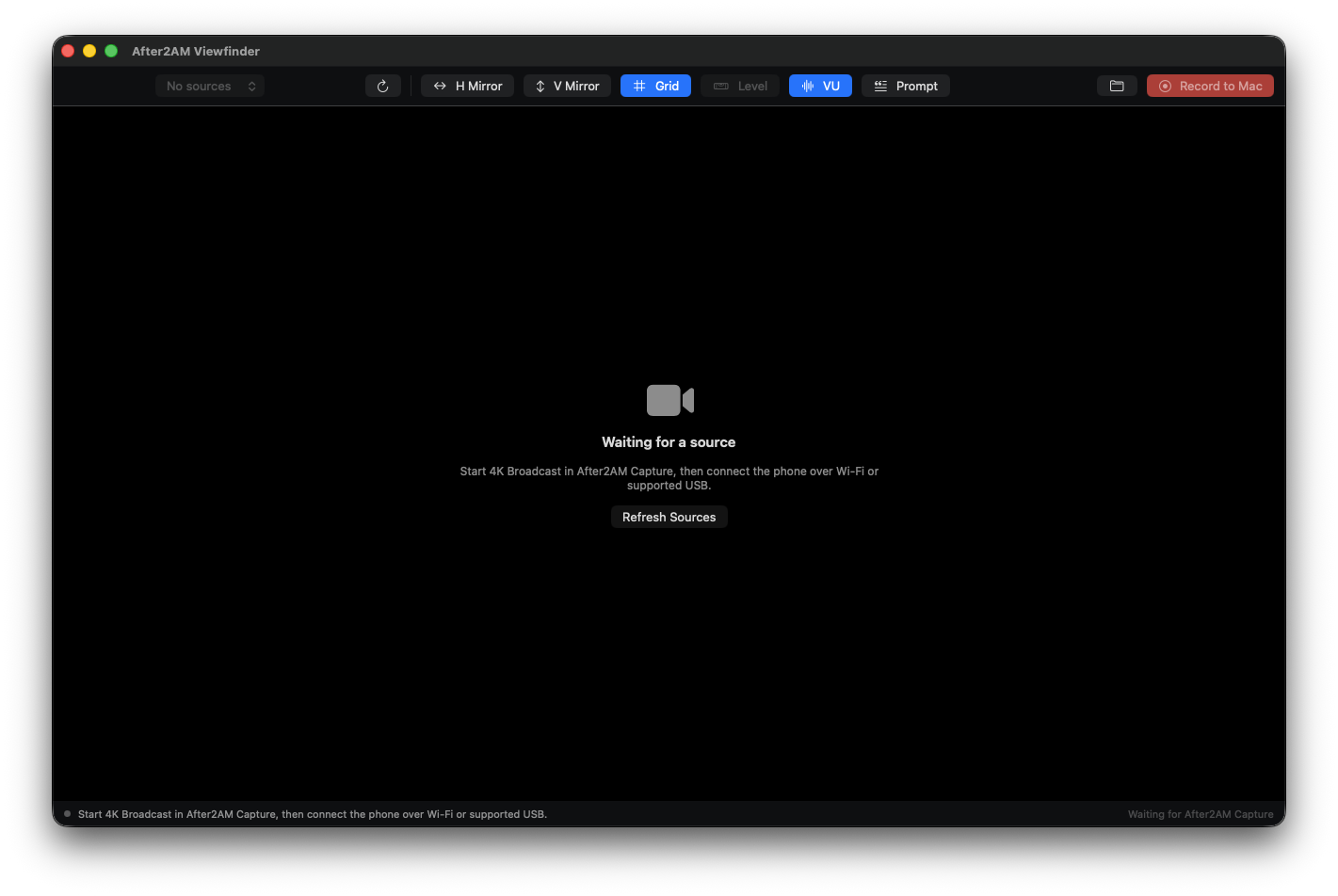
A healthy live session has all of these signals:
- the preview matches the phone’s current landscape orientation;
- the upper corner shows CONNECTED;
- the battery percentage and charging state are present;
- the VU meter reacts to the selected phone input; and
- the Record button becomes available after real audio frames arrive.
Record ten seconds of speech, wait for SAVING… to disappear, reveal the MOV in Finder, and play it before the first important session.
What the movie contains
Viewfinder writes the received 4K HEVC video without a second video encode and adds synchronized AAC audio from the phone. Grid, battery, level, VU, teleprompter, and mirror settings are monitoring aids only; they are not burned into the MOV.
The phone does not create a duplicate movie during this workflow. The recording exists in the folder selected on the Mac.