The daily production workflow
Today is a brief, not another place to maintain data. Read it, act on the most important item, then move into Planning or the focused episode to do the work.
Read Today from top to bottom
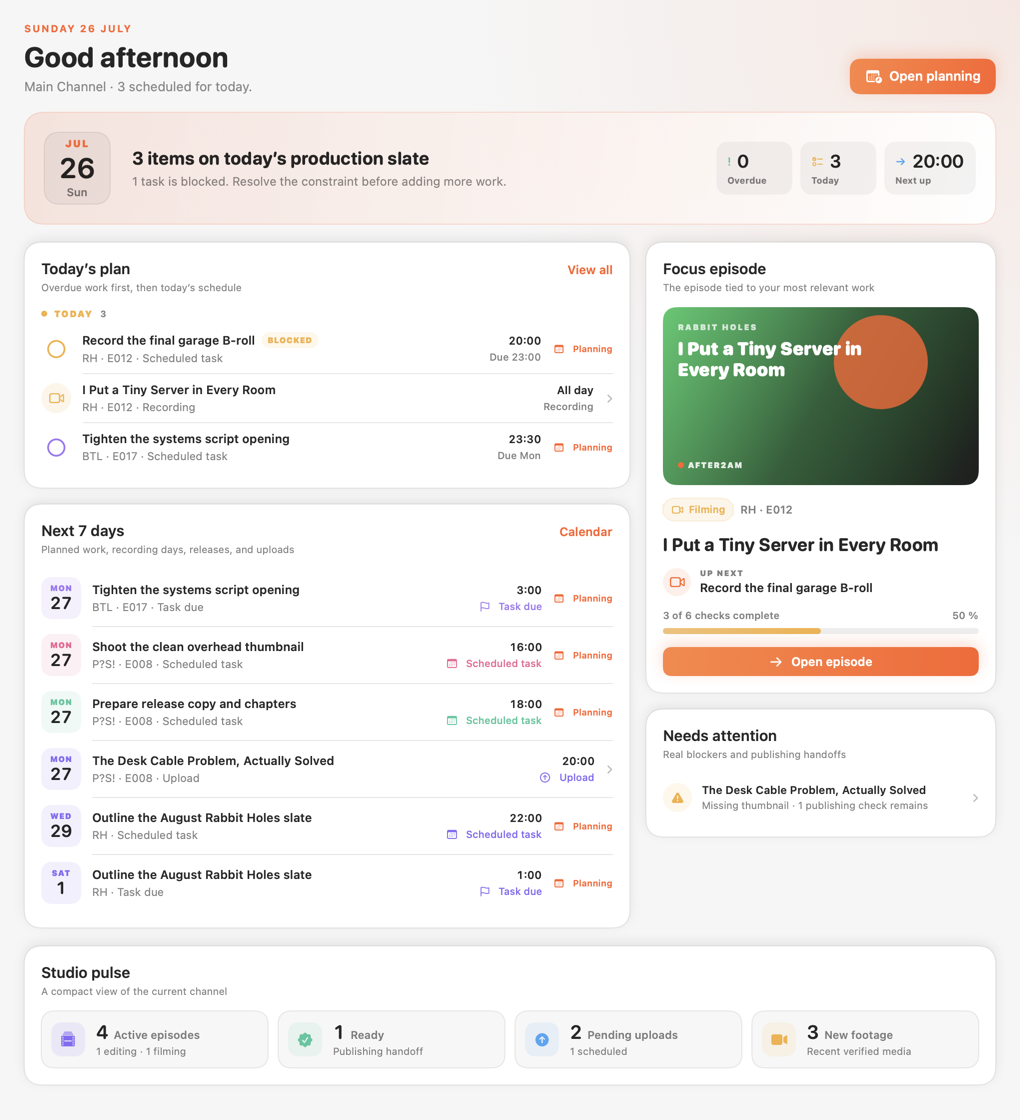
- Clear overdue work first. Today’s plan ranks overdue tasks and deadlines before the rest of the day. Complete a task directly or open its exact editor in Planning.
- Check the focus episode. The app chooses the active episode most closely connected to relevant work. Use Open episode to continue its checklist, media, script, or publishing packet.
- Resolve genuine blockers. Needs attention is reserved for failed jobs, missing stage assets, inaccessible files, and publishing handoffs—not every incomplete field.
- Scan the next seven days. Upcoming scheduled work, recording dates, releases, and uploads reveal collisions before they become emergencies.
- Use Studio pulse as a check, not a score. It summarises active episodes, publishing handoffs, pending uploads, and newly imported media for the selected channel.
It reads planning tasks and dates already owned by episodes, release plans, and existing upload records. Change the source item in Planning or the episode; Today updates with it.
The six-step episode path
The sidebar keeps this sequence visible. “Camera 1” and “Camera 2”
are reminders to import each source batch separately; both use
the same general Import Footage flow and land in the
episode’s Footage folder.
1. Create the episode
Use a series template or choose Single. Leave Create production folders now enabled for normal work so the app writes the folder structure, template files, checklist, notes, and portable episode manifest.
2–4. Bring in media
Import camera batches into the episode and reusable B-roll into the Media Library. The app copies to a hidden partial file, verifies SHA-256, then makes the organised copy visible. Source files are never changed or deleted.
5. Produce and verify
Work in your editor while After2AM Manager tracks the script, linked files, render state, checklist, planned dates, and publishing metadata. Use Finder handoff whenever the task belongs in Finder or another production tool.
6. Publish and archive
Open the full Publishing readiness assessment before handoff. After publishing outside the app, record the published URL and actual publication time. Archive only when both storage roots are healthy and any linked episode files can travel with the folder.
Status is not the checklist
Episode status answers “where is this in production?” The checklist answers “what must still be done?” Keep both truthful.
A status change never proves the underlying file checks. “Ready” still needs the full publishing assessment; “Published” should still have an actual URL or timestamp; “Archived” is applied by the verified storage workflow.
End the day cleanly
- Resolve any global Changes may not be saved banner before quitting.
- Let active imports or storage transfers finish, or cancel them from their own progress view.
- Check that new footage shows a verified import state.
- Record new tasks in Planning rather than relying on memory.
- Keep original source media and your independent backup intact.